Monday, September 3, 2007

Week five’s lecture was about atom and bit-based information. Atom-based information is something you can hold in your hand (like a book or paper for example). It is good because it is difficult to replicate or change and it’s easy to hide. On the other hand, it is often bulky, costly and difficult to distribute. Bit-based information is digital reproductions of atom-based information and if flexible, cheap and easy to distribute. However, it is easy to edit, steal and fake information.
The lecture was also about learning some principles of organising our bit-based information. This included a list of some of the different types of files that a student may come across and what programs are needed to use them. A handy hint that was given out was that if you use the ‘properties’ tool to create metadata about your document, it will make finding it in the future much easier. For example, if you have written an essay on Makybe Diva, you may put ‘horse racing’ or ‘Thoroughbreds’ in your metadata. It is also a good idea to use the ‘search’ tool when trying to locate files.

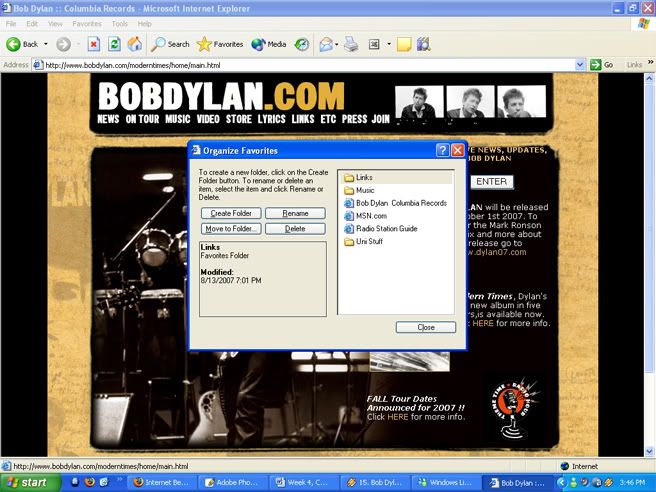
In week five’s workshop, students were to learn how to effectively use their ‘favourites’ tool in Internet Explorer. For a student to be using this tool to his or her full advantage, they should know how to bookmark a page and then organise that page into appropriate folders. To prove that we knew how to do this, we were to make three folders with at least two pages saved in them. For a screenshot of my completed exercise, view the picture below (click for full image):

For this week’s workshop, students were also required to read ‘Being Digital’ by Nicholas Negroponte. This archive was all about new technologies (bit-based information) and how they are influencing old ones (atom-based information). An example of this is ‘Video on Demand’ instead of regular movie renting. Bit-based information seems to be welcomed by people with open arms because it is far more convenient than atom-based. It can be moved around much easier. A situation this could be relevant in would be if you had bought back atom-based information from an overseas holiday, there is a good chance it may be held in customs. When you are using bit-based information, on the other hand, you would not need to clear it the way you would the atom-based and you would be able to use and enjoy it much sooner. Bit-based information also has a better chance of lasting longer in that a certain text may go out of print on paper, but you would still probably be able to access it through bit-based documents. Civilisation, almost without realising it, has moved from an industrial age (in which atoms were very popular and bit-based virtually non-existent) to a post industrial age and then onto an information age (where bit-based information is everywhere). We have now started to move into a post information age. Everything is ‘made to order’ according to who we are and what our habits might be. This is all in the name of convenience because this way, we don’t have to remember if our boss’ prefer red or white wine.

For week five’s reading, students were required to read Information Management and Electronic Environments by Dr Jim Mullaney. This text firstly informed the reader of the program EndNote and how useful it can be to students when they are referencing. Bookmarks and folders labeled appropriately will also be a very useful thing. A general idea of what was okay to do and what was not okay to do as far as referencing goes was also stated. Copying and pasting for notes is more than acceptable (and keeping the web addressed you obtained the information from is handy as well), whereas trying to say that the work is entirely your own is very offensive.

Sunday, September 2, 2007

This week’s lecture was basically about the different types of communication used on the internet/computer. The examples included in the lecture are email, instant messenger, forums, blogs, wikiwebs and social networking. While these six were included in the lecture, there are probably more types out there. Students were informed about what types of communication there are and why exactly a particular form of communication falls under a certain type. For example, a chat room is place dependant and synchronous because you must be in the same place on the internet at the same time to be able to chat to people. A bulletin board, however, is place dependant but asynchronous because while you must be in the same place on the internet, you don’t have to be there at the same time as somebody else to communicate with them. Examples of alternative emails and instant messengers were given. Also included in week four’s lecture was ‘netiquette’ which was basically giving students a general idea about how to behave when using email and such. For instance, BCC generally means ‘blind copy’ and it will not show emails entered into that field when sent.

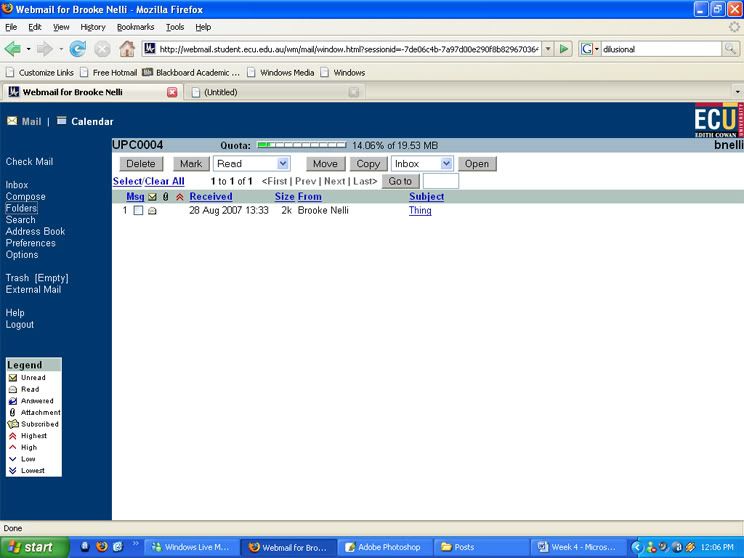
For week four’s workshop, students were firstly asked to organise their ECU emails a little as well as get to know how to use it. To do this, four folders were to be created (one for each unit, e.g. UPC0004). Then, we were to send an email to somebody sitting next to us. Because I did this activity at home, I sent an email to myself. That email was to be sent to the UPC0004 folder. To see a screenshot of this activity complete, view the screenshot below (click for full image):


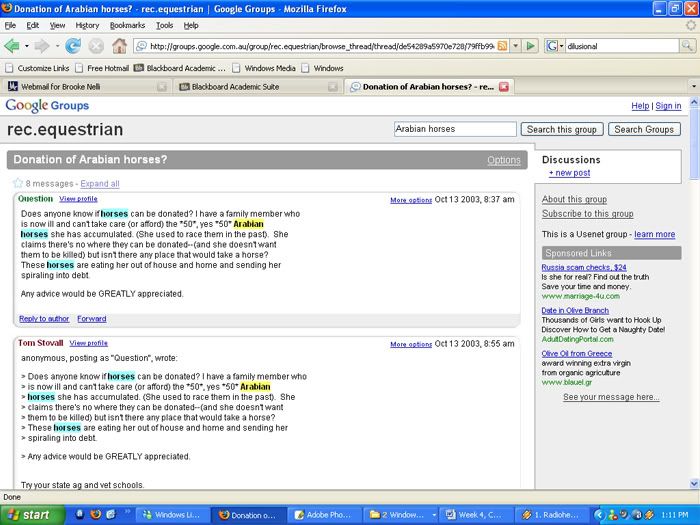
The second part of our workshop required students to search a topic under the ‘Groups’ section of Google. I chose to search Arabian horses. I found that the majority of the messages posted were simply sales or owners of Arabian horses posting behavior problems. There was the odd question about the history of the horse breed and such, but no topic in particular struck me as terribly interesting. There was, however, a message posted about an elderly woman who had become sick and wanted to sell her 50 Arabian horses to loving homes. I was interested enough in this post to read the entire thing. To view the screenshot, see below (click for full image).


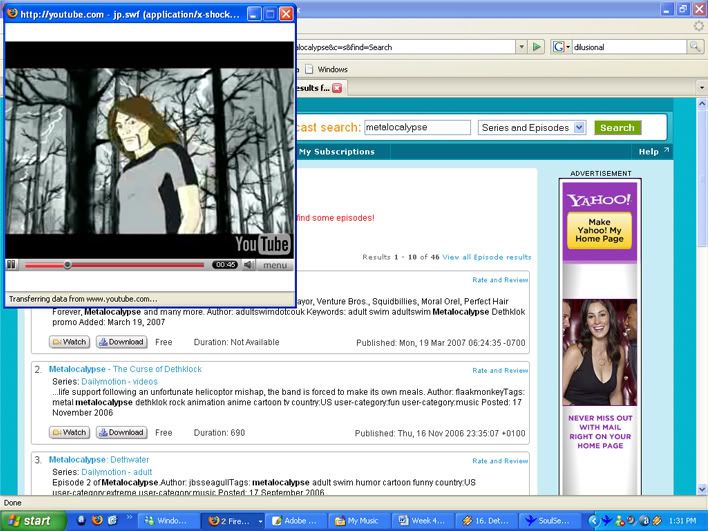
Students were also to visit a podcast website (http://podcasts.yahoo.com for example) and search something. I chose to search for my favourite show Metalocalypse. I was really happy with the search results returned. Some of the things that I was able to see were promos, episodes and some audio including their songs. To view a screenshot, see below (click for full image):


I believe podcasts could be particularly beneficial to students in that lectures and such could be recorded and posted if students were to miss out on a day. This would assure they would have the best opportunities to learn.

The first reading for week four was information on the different things you should remember when sending emails to people in your workplace. It included information for both senders and recipients. The second reading included knowledge on internet relay chats. This was helpful in that it included many of the dos and don’ts. For example, you should avoid typing in all capitals because people regard it as shouting. The third reading was on SPAM. It was filled with information on what is bad about SPAM, why it is such a big problem and a possible way to stop it.

Sunday, August 19, 2007

In week 3’s lecture, students were informed of different ways to give an effective oral presentation. It was made clear that it was very important to try and seem as confident as possible so as to let the audience think you are an expert in what your presentation is about. Students were also given an idea of what to include in slides and in what order to deliver them to the audience. A useful tip that was given is to remember who your audience is. They are not children, but they will lose interest in your presentation if you let them. To prevent them from losing interest, it was indicated that you must be resourceful. For example, if you have a sense of humor and are naturally funny, use it. If you aren’t, however, it’s best to try not to include humor as you may end up looking quite the fool.

In the workshop this week, students were firstly to create a Top Five list of strategies to give a good oral presentation. To do this, we were to refer to the lecture slides/notes for this week as well as the web site http://pages.cs.wisc.edu/~markhill/conference-talk.html (found on Blackboard).
Below is my Top Five list:

1. Make sure your audience understands what you are talking about. Don’t dumb it down too much, but remember that if your audience gets confused, they will lose concentration and will not go away from your presentation with anything useful.

2. Be interesting yourself rather than show it on your PowerPoint. Speak clearly and try not to speed through your talk. Allow time for you audience to process what you are saying as people are often interested most when they feel they get something. Remember to make eye contact. Don’t distract them with too many bright colours or animations on your PowerPoint presentation. Only include graphics and such if they support your presentation.

3. Try to use your PowerPoint presentation as an aid rather than the whole presentation. Only include the key points of what you are talking about. Do not include everything you are saying to the audience on the slides.

4. Make sure you practice your presentation so that it is within the time limit given. The more you practice, the more confident you will feel and appear as you will know you have a good understanding of what you are talking to your audience about. Try to practice in front of people (friends or family members) so when you get up in front of people in your final presentation, you don’t get too overwhelmed.

5. Make sure everything is in working order before hand. If you are going to include sound in your presentation for example, make sure it is going to work on the computer you are using. Be prepared in case something goes wrong (make back up hard copies of everything preferably on overheads).

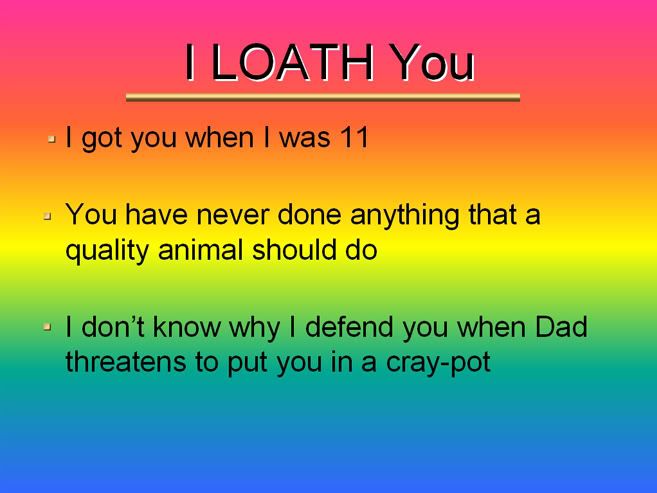
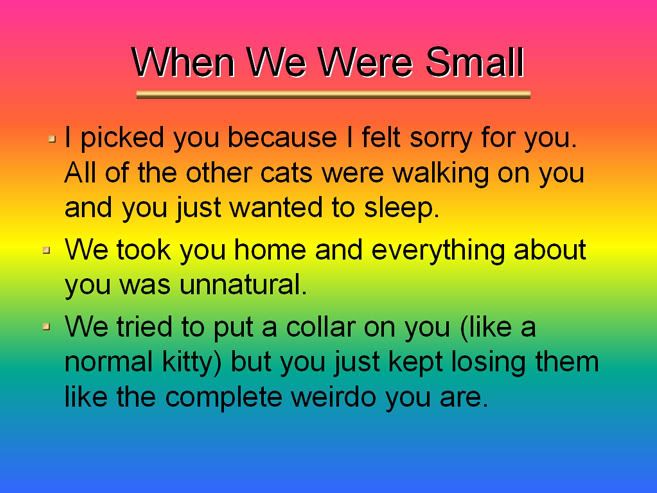
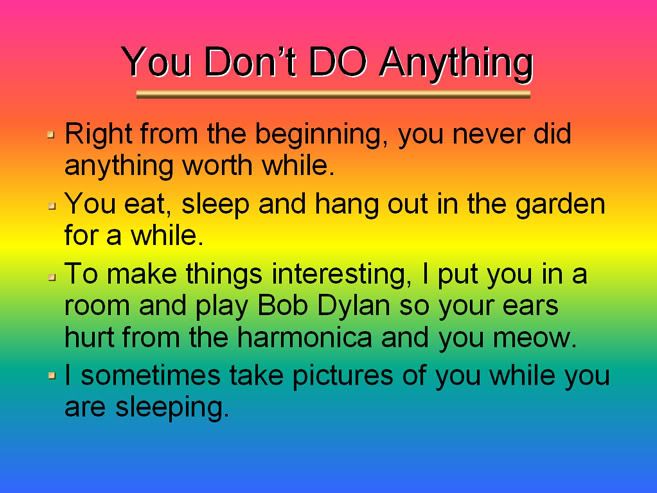
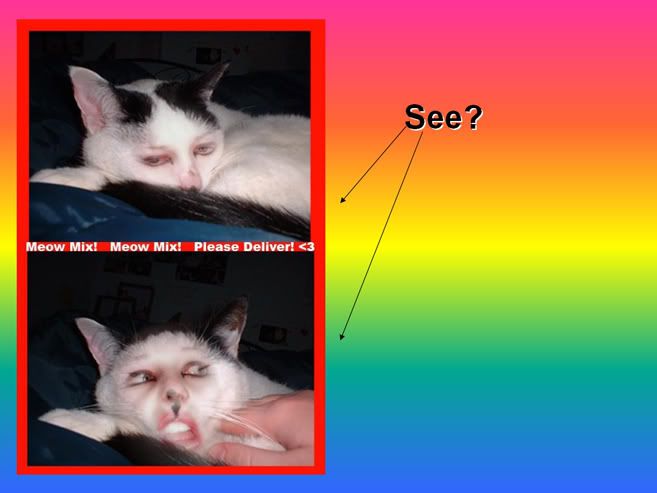
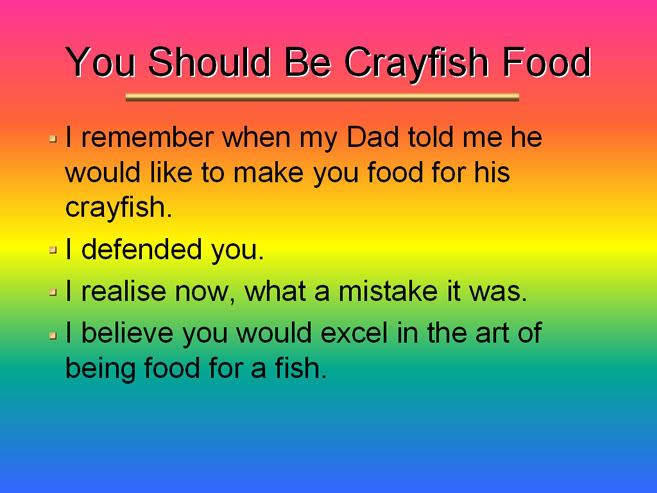
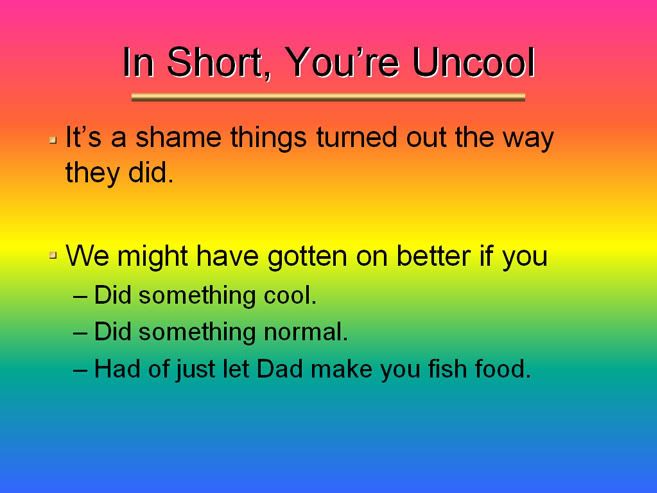
In the second part of our workshop for week 3, students were required to create a PowerPoint of a biographical nature. We could make the subject on pretty much anything we wanted and could make it as showy as we wanted (to show we had an understanding of how to use the program). I chose to make my presentation on how much I dislike my cat. As required, I gave it 1 animation and some graphics. Although you cannot see them in the screenshots provided, I added animation to each object. My favourite animation would have to be the colour typewriter. To see the slides for my PowerPoint presentation, view the screenshots below (click for full view):


The readings covered this week (the site http://pages.cs.wisc.edu/~markhill/conference-talk.html on Blackboard) were pretty much reinforcing the main points of the lecture. I found the last part (How to Give a Bad Talk by David A. Patterson) really quite funny as well as informative on some things that hadn’t been touched on much in either the lecture or the first part of the reading. Information I found useful was to remember to use appropriate sized font. I also got the idea that preparation time is just as important as research time.

Sunday, August 12, 2007

Week two’s lecture included different things you might do on a computer. Incorporated were Windows Explorer, MS Word, MS Excel, MS PowerPoint, Internet Explorer, Outlook Express and Adobe Acrobat Reader.
Windows Explorer is (to my understanding) is basically something that helps you with file management. Among other things, you can easily rename files, copy and past them and move them.
MS Word is a program in which you can create documents for assignments (or anything else that needs to be written up). By simply clicked your mouse, you can make the document look very professional by using headers and footers, titles and sub titles and many more things.
MS Excel helps you create spreadsheets and charts rather easily. While my knowledge of it is very limited, I understand that you enter data, to which you can find out the sum, average etc. Using that data, you can also create a range of charts including (and not limited to) pie charts, scatter charts and bar charts.
MS PowerPoint allows you to create presentations that you can present to people. The use of animation and sound is allowed, but it has been made clear that you should only really use them to support your notes rather than decorate them. You don’t want the focus to be taken away from the point of the presentation.
Internet Explorer is but one of the browsers available to access the World Wide Web. Hyperlinks included in the browser (home, back page, refresh etc) make it simple to navigate your way.
Outlook Express is also but one of the programs you can use to send and receive emails. An alternative would be Thunderbird (through www.mozilla.org).
Adobe Acrobat Reader allows you to view PDF documents from the internet and such. You can either view these documents online through Acrobat or download them to your PC and view them from there.
Other common PC programs include audio and video players and photo editing programs.

In this week’s workshop, students were to complete tasks in both MS Word and MS Excel.
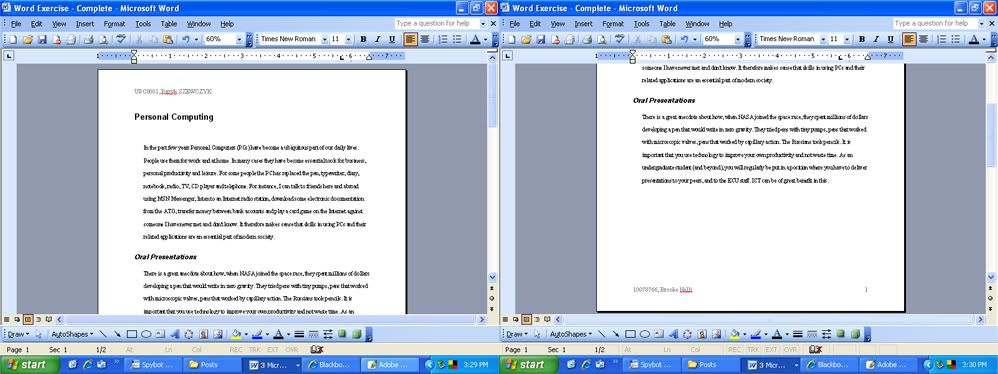
In the MS Word exercise, students had to copy and paste a section of text into a new document. That document was then to be altered by changing the typeface, margin and alignment, line spacing, creating headings (and keeping those headings with the text) and creating headers and footers. To complete these tasks, instructions were given on Blackboard in the document reading_Mod01-2-5.pdf. To see a screenshot of this part of the exercise completed, view the screenshot below (click for full image):


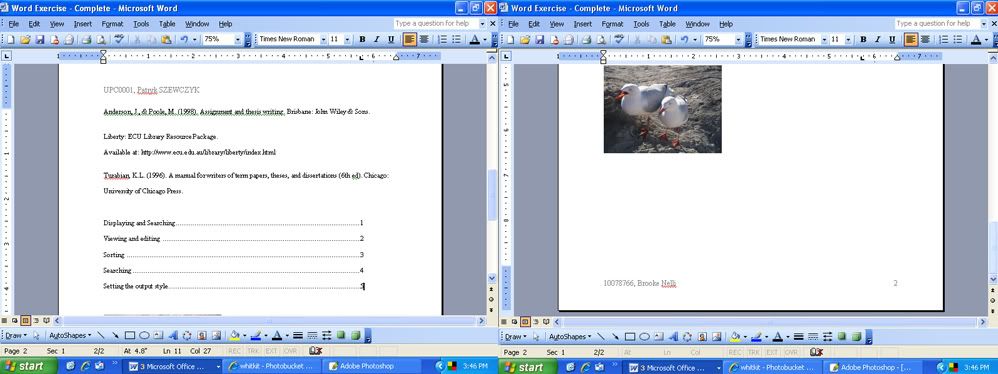
Students were then to copy and paste a small group of references into the same document and alphabetize them. A list of titles was then to be copied and pasted into the document and made into a table of contents by creating dot leaders for them. An image was then to be inserted underneath the table of contents. Again, instructions on how to complete these tasks were listed in the document on Blackboard. To see a screenshot of this part of the exercise completed, view the screenshot below (click to see full image):


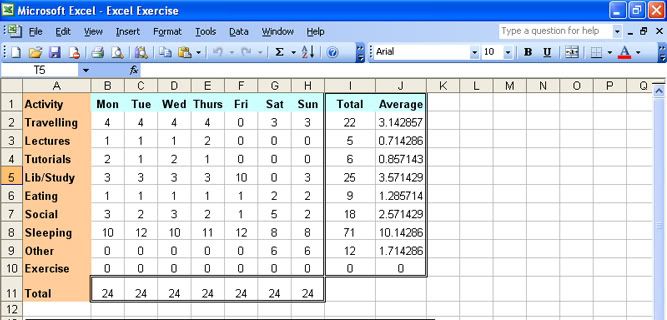
In the MS Excel exercise, students were to firstly complete a table according to the requirements in the document Excel Exercises.doc.pdf found on Blackboard. Students were to adjust column widths and row heights, the table border, alignment of the cells, and some of the cell’s colours. Along the top of the table, cells B1 – H1 were to be labeled with week days (Monday – Sunday). Cell I1 was to be labeled Total and J1 Average. Cells A1 – A11 were to be labeled Activity, Traveling, Lectures, Tutorials, Lib/Study, Eating, Social, Sleeping, Other, Exercise and Total. Students were then to fill in how much time per day they spent doing each activity. Once that was finished, they were to use a Formula that calculated the Sum for each activity in the column following the cell titled Total (cell A11) to make sure each day included the full 24 hours. The summing rule was then to be applied to the row following the cell titled Total (cell I1). Once students had completed that, there was to be a Formula that calculated the Average for each activity in the row following the cell titled Average. For a screenshot of this completed activity, view the screenshot below (click to see full image):


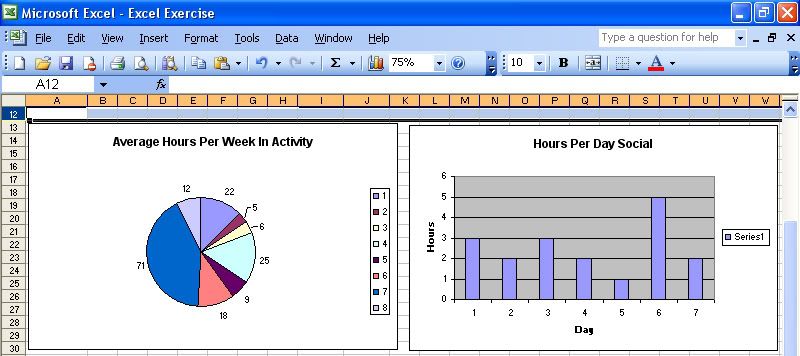
Using the information gathered in this table (the total for each activity), students were to create two charts to present the findings: a pie chart and a column chart. To see a screenshot of these two charts, view the screenshot below (click to see full image):


I should take this time to say that having never used MS Excel properly until this workshop, I found the site http://www.baycongroup.com/excel.htm (provided on Blackboard) very helpful.

The first reading on Blackboard was titled Using MS Word for APA Tasks. This document covered all the different things you can do to a document to make it look professional. This included the steps we took to alter the text in our MS Word workshop as well as other varied things (hyperlinks, grammar check etc.) you can use.
The second reading on Blackboard was titled Graphic File Formats. Upon reading this, students were educated on what file format was the best one to use for certain graphics. Also included was what certain file formats would do (e.g. .gif’s could be a still image or an animation).

Monday, July 30, 2007

In this weeks lecture, the UPC students were given an introduction to UPC0004. The course structure was given to us first up and this included the titles of the modules and how long it would take to complete them. We were then told of our three assessment tasks. An idea of when they were due and how they would contribute to our marks was given, as well.
As in all of the other lectures so far, we were informed of when to (and when not to) ask for extensions for our assignments and how our marks were affected if they were in fact late. Emails for the lecturers and tutors were also available during the lecture as well as the correct way to address them while using the emails (i.e. no ‘Hey Patryk’). Something I found comforting was the encouragement to ask questions.

In the tutorial this week, our first task was to check that we knew how to log into Blackboard (MyECU), SIMO and our ECU emails and just get that little bit more comfortable with each of them.
First, you visit the main page at the ECU website. On the navigation bar located on the left hand side of the page, there was a link named ‘Current Students’ which you had to click on. From there, you could access your email account, SIMO and MyECU by clicking on the appropriate link on the left hand side navigation bar.
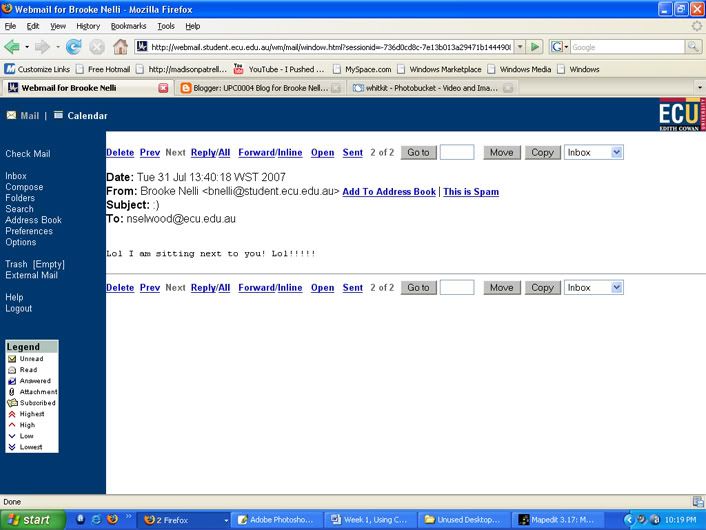
First, I logged into my ECU email account. When I logged in, I tried to send my friend a test email. We waited for about 5 minutes and when she still hadn’t received the email, we decided to double check I had the address correct. Upon checking my Sent Items folder, I realised that instead of sending it to nselwood@student.ecu.edu.au, I had sent it to nselwood@ecu.edu.au. I wouldn’t have known unless I had looked in the ‘From’ field that included my ECU email address. For a better understanding of what I mean, take a look at a screen shot of the sent email below (click for full image):


To log into SIMO, I clicked the ‘SIMO’ link on the left hand side navigation bar to start off with. On the page that loads, I clicked the ‘Login’ link. In SIMO, students can check their timetable, maps for where their classes are, the bookshop and a few different things.
For Blackboard, I clicked the ‘MyECU’ link and then the ‘Login To MyECU’ link (both on the left hand side navigation bar, of course). Once inside Blackboard, students can access their units by clicking on the ‘MyECU Sites’ tab located on the top navigation bar. Then, on the right hand side the units are listed. By clicking on the ‘Unit Resources’ link, lecture slides and other helpful things for the unit can be found. By clicking on the ‘Assessment’ link, students will find information about their assessments and a marking grid.
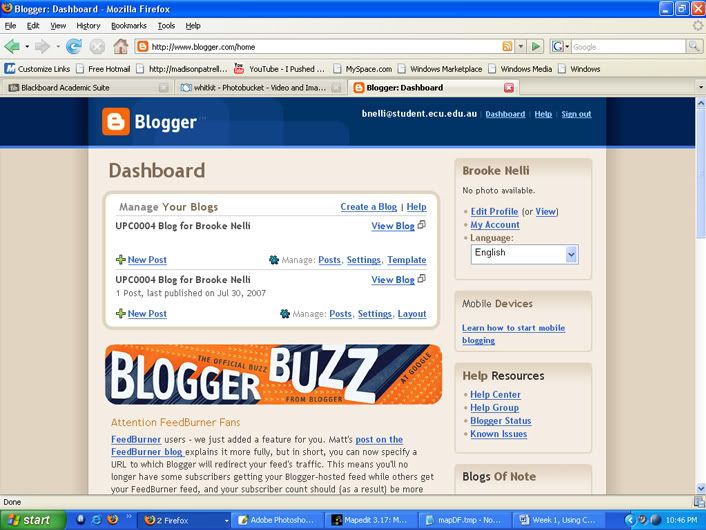
To make a blog at www.blogger.com, I went to the site and clicked the orange arrow that says ‘Create Your Blog Now’. I filled in what was required (including my ECU email address) and clicked the ‘Continue’ arrow. On the next page, I named my blog and gave it an address and once again clicked the ‘Continue’ arrow. Once I chose a template for my blog, I was finished. To see the dashboard for my blog, see the screenshot below (click for full image):


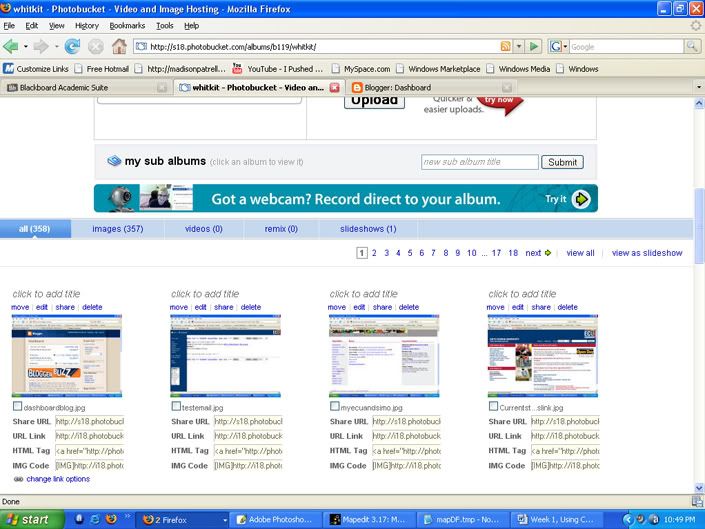
To host my screenshots, I chose to use www.photobucket.com over www.imageshack.us because I already have an account with Photobucket. To see a screenshot of my Photobucket account, view the screenshot below (click for full image):


The reading this week was a basic introduction to what is inside a computer on the website http://www.howstuffworks.com/pc.htm. By finding out this regular knowledge, the reader gets a better understanding of their computer. This knowledge is beneficial to the reader because, for example, they will have an idea of what part of the computer might not be working if something goes wrong (e.g. the sound card might not be working properly if the computer isn’t playing audio).

This week, I plan to revamp my blog by adding GIF image titles and such. I feel it will make the blog look nicer and it will have more of an edge to it.